Help article
Moving a Sound Yeti product to another location on your computer or external drive.
From Installation — installs, licenses, and troubleshooting.
Moving a Sound Yeti product to another location on your computer or external drive.
Note: This feature is available on Mac OS X 10.10 (and higher) and Windows 7 (and higher). If you are using Mac OS X 10.9 (or lower), please refer to this article instead.
This article explains how to move a Sound Yeti product to another location on your computer. Please note:
- Move your SY product to its new location.
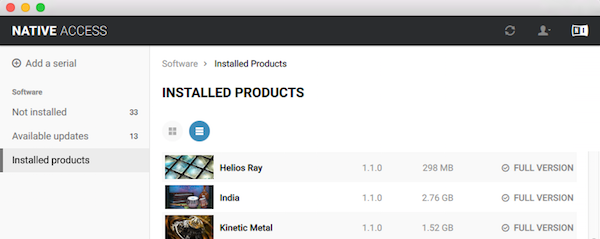
- Launch Native Access.
- Go to the Installed products tab. The product you moved is marked with a yellow REPAIR label.
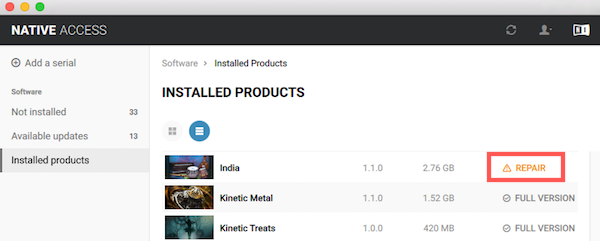
- Click on REPAIR and select RELOCATE in the drop-down menu.
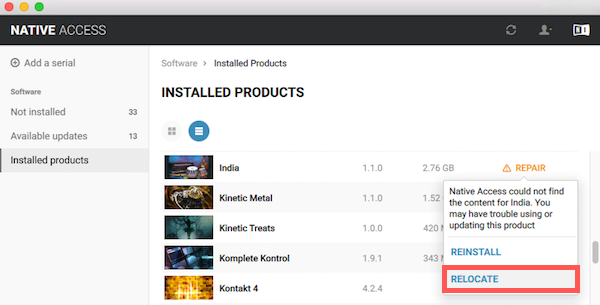
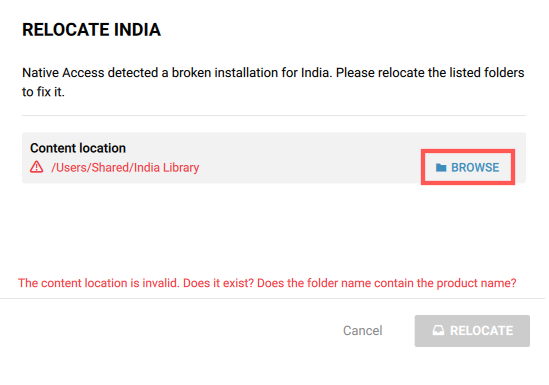
- In the Relocate window Native Access lists the old location of your SY product and notifies you it is invalid. Click BROWSE next to the product you have moved.
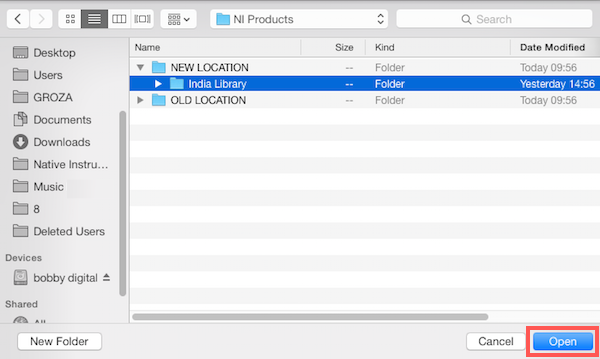
- Browse to your product’s new location, select its folder and click Open.
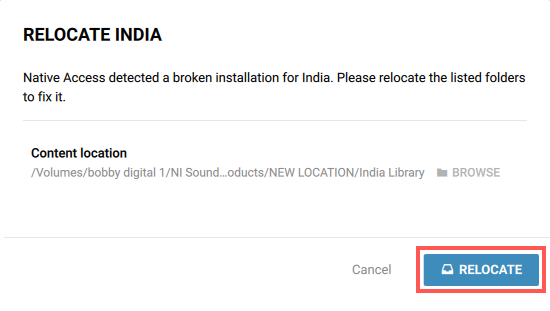
- The Relocate window now lists your product’s new location path. Click the RELOCATE button.
- Your installation is now repaired. Your SY product appears as correctly installed in Native Access.